HP LaserJet M1005 MFP - Print problems and solutions
HP LaserJet M1005 MFP - Print problems and solutions

Print quality problems
Occasionally, you might encounter problems with print quality. The
information in the following sections helps you identify and resolve
these issues.
Improving print quality
Use the print-quality settings to prevent print-quality problems.
Understanding print-quality settings
Print-quality settings affect how light or dark the print is
on the page and the style in which the graphics are printed.
You can also use the print-quality settings to optimize the
print quality for a specific media type.
You can change the settings in the device properties to
accommodate the types of jobs that you are printing. The
following settings are available, depending on the printer
driver that you are using:
-
600 dpi
-
FastRes 1200: This setting produces the same resolution as the default setting, but you can change the scale patterns.
NOTE:Changing the resolution can change the formatting of your text.
To temporarily change print-quality settings
To change the print-quality settings only for the current
software program, open the properties through the Print
Setup menu in the program that you are using to print.
To change print-quality settings for all future jobs
For Windows 2000:
-
In the Windows system tray, click Start, select Settings, and then click Printers.
-
Right-click the device icon.
-
Click Properties (in Windows 2000, you can also click Printing Preferences).
-
Change the settings, and click OK.
For Windows XP:
-
In the Windows system tray, click Start, and then click Printers and Faxes.
-
Right-click the device icon.
-
Click Properties, or click Printing Preferences.
-
Change the settings, and click OK.
Identifying and correcting print defects
Use the checklist and print-quality issues charts in this section
to solve print-quality problems.
Print-quality checklist
General print-quality problems can be solved by using the
following checklist:
-
Make sure that the paper or print media that you are using meets HP specifications. Generally, smoother paper provides better results.
-
If you are using a special print media such as labels, transparencies, glossy, or letterhead, ensure that you have printed by type.
-
Print a Configuration report at the device control panel.
-
If the page did not print correctly, the problem is with the hardware. Contact HP Customer Care.
-
-
Print a Demo page from the device control panel. If the page prints, the problem is with the printer driver.
-
Use the Add Printer Wizard in the Printers (or Printers and Faxes in Windows XP) dialog box to install the correct driver.
-
-
Try printing from a different program. If the page prints correctly, the problem is with the program from which you were printing.
-
Restart the computer and the device and try printing again. If the problem is not resolved, see .
General print-quality issues
The following examples depict letter-size paper that has passed
through the device short-edge-first. These examples illustrate
problems that would affect all of the pages that you print. The
topics that follow list the typical cause and solution for each of
these examples.
|
Problem
|
Cause
|
Solution
|
|
Print is light or faded.

|
The media might not meet HP specifications.
|
Use media that meets HP specifications.
|
|
The print cartridge might be low.
|
Replace the print cartridge.
If the print cartridge is not low or empty, inspect
the toner roller to see if the roller is damaged. If
it is, replace the print cartridge.
|
|
|
If the whole page is light, the print density
adjustment is too light or EconoMode might be turned
on.
|
Adjust the print density, and disable EconoMode in the
device Properties.
|
|
|
Toner specks appear.
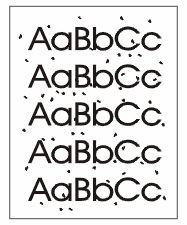
|
The media might not meet HP specifications.
|
Use media that meets HP specifications.
|
|
The paper path might need cleaning.
|
Clean the paper path.
|
|
|
Dropouts appear.

|
A single sheet of print media might be defective.
|
Try reprinting the job.
|
|
The moisture content of the paper is uneven or the
paper has moist spots on its surface.
|
Try different paper, such as high-quality paper that
is intended for laser printers.
|
|
|
The paper lot is flawed. The manufacturing processes
can cause some areas to reject toner.
|
Try different paper, such as high-quality paper that
is intended for laser printers.
|
|
|
The print cartridge might be defective.
|
Replace the print cartridge.
If the error persists, contact HP Customer Care.
|
|
|
Vertical streaks or bands appear on the page.

|
The print cartridge might be low or defective.
|
Replace the print cartridge.
|
|
The amount of background toner shading becomes
unacceptable.

|
The media might not meet HP specifications.
|
Use a different paper with a lighter basis weight.
|
|
The priority input tray might be installed
incorrectly.
|
Make sure that the priority input tray is in place.
|
|
|
Very dry (low humidity) conditions can increase the
amount of background shading.
|
Check the device environment.
|
|
|
The print cartridge might be low.
|
Replace the print cartridge.
|
|
|
Toner smears appear on the media.

|
The media might not meet HP specifications.
|
Use media that meets HP specifications.
|
|
If toner smears appear on the leading edge of the
paper, the media guides are dirty, or debris has
accumulated in the print path.
|
Clean the media guides and the paper path.
|
|
|
The print cartridge might be low.
|
Replace the print cartridge.
|
|
|
The fuser temperature might be too low.
|
In the printer driver, make sure the appropriate media
type is selected.
|
|
|
The toner smears easily when touched.

|
The device is not set to print on the type of media on
which you want to print.
|
In the printer driver, select the Paper tab
and set Type is to match the type of media
on which you are printing. Print speed might be slower
if you are using heavy paper.
|
|
The media might not meet HP specifications.
|
Use media that meets HP specifications.
|
|
|
The paper path might need cleaning.
|
Clean the device.
|
|
|
The power source might be defective.
|
Plug the device directly into an AC outlet instead of
into a power strip.
|
|
|
The print cartridge might be low.
|
Replace the print cartridge.
|
|
|
Marks repeatedly appear at even intervals on the page.

|
The device is not set to print on the type of media on
which you want to print.
|
In the printer driver, make sure that the appropriate
media type is selected. Print speed might be slower if
you are using heavy paper.
|
|
Internal parts might have toner on them.
|
The problem typically corrects itself after a few more
pages.
|
|
|
The paper path might need cleaning.
|
Clean the device.
|
|
|
The print cartridge might be damaged.
|
If a repetitive mark occurs at the same spot on the
page, install a new HP print cartridge.
|
|
|
The printed page contains misformed characters.

|
The media might not meet HP specifications.
|
Use a different paper, such as high-quality paper that
is intended for laser printers.
|
|
If characters are incorrectly formed so that they
produce a wavy effect, the laser scanner might need
service.
|
Verify that the problem also occurs on the
Configuration report. If so, contact HP Customer
Care.
|
|
|
The printed page is curled or wavy.

|
The device is not set to print on the type of media on
which you want to print.
|
In the printer driver, make sure the appropriate media
type is selected.
If the problem persists, select a media type that uses
a lower fuser temperature, such as transparencies or
light media.
|
|
The media might have been in the input tray too long.
|
Turn over the stack of media in the tray. Also, try
rotating the media 180° in the input tray.
|
|
|
The paper path is curling the media.
|
Use the Less paper curl setting.
|
|
|
The media might not meet HP specifications.
|
Use a different paper, such as high-quality paper that
is intended for laser printers.
|
|
|
Both high temperature and humidity can cause paper
curl.
|
Check the device environment.
|
|
|
Text or graphics are skewed on the printed page.

|
The media might be loaded incorrectly or the input
tray might be too full.
|
Verify that the media is loaded correctly and that the
media guides are not too tight or too loose against
the stack.
|
|
The media might not meet HP specifications.
|
Use a different paper, such as high-quality paper that
is intended for laser printers.
|
|
|
The printed page contains wrinkles or creases.

|
The media might be loaded incorrectly or the input
tray might be too full.
|
Turn over the stack of paper in the input tray, or try
rotating the paper 180° in the input tray.
Verify that the media is loaded correctly and that the
media guides are not too tight or too loose against
the stack.
|
|
The media might not meet HP specifications.
|
Use a different paper, such as high-quality paper that
is intended for laser printers.
|
|
|
The paper path is curling the media.
|
Use the Less paper curl setting.
|
|
|
Air pockets inside envelopes can cause them to
wrinkle.
|
Remove the envelope, flatten it, and try printing
again.
|
|
|
Toner appears around the printed characters.

|
The media might be loaded incorrectly.
|
Turn over the stack of paper in the tray.
|
|
If large amounts of toner have scattered around the
characters, the paper might have high resistivity.
|
Use a different paper, such as high-quality paper that
is intended for laser printers.
|
|
|
An image that appears at the top of the page (in solid
black) repeats farther down the page (in a gray
field).

|
Software settings might affect image printing.
|
In your software program, change the tone (darkness)
of the field in which the repeated image appears.
In your software program, rotate the whole page
180° to print the lighter image first.
|
|
The order of images printed might affect printing.
|
Change the order in which the images are printed. For
example, have the lighter image at the top of the
page, and the darker image farther down the page.
|
|
|
A power surge might have affected the device.
|
If the defect occurs later in a print job, turn the
device off for 10 minutes, and then turn on the device
to restart the print job.
|
Media-handling problems
Use the information in this section when the device experiences
media-handling problems.
Print-media guidelines
-
For best results, make sure that the paper is of good quality, and free of cuts, nicks, tears, spots, loose particles, dust, wrinkles, voids, staples, and curled or bent edges.
-
For best-quality printing, use a smooth type of paper. Generally, smoother media produces better results.
-
If you are unsure what type of paper you are loading (such as bond or recycled), check the label on the package of paper.
-
Do not use media that is designed for Inkjet printers only. Use media that is designed for LaserJet printers.
-
Do not use letterhead paper that is printed with low-temperature inks, such as those used in some types of thermography.
-
Do not use raised or embossed letterhead.
-
The device uses heat and pressure to fuse toner to the paper. Make sure that any colored paper or preprinted forms use inks that are compatible with this fusing temperature (200°C or 392°F for 0.1 second).
CAUTION:Failure to follow these guidelines could cause jams or damage to the device.
Solving print-media problems
The following problems with media cause print-quality deviations,
jamming, or even damage to the device.
|
Problem
|
Cause
|
Solution
|
|
Poor print quality or toner adhesion
|
The paper is too moist, too rough, too heavy or too
smooth, or it is embossed or from a faulty paper lot.
|
Try another kind of paper, between 100 and 250 Sheffield,
with 4 to 6% moisture content.
|
|
Dropouts, jamming, or curl
|
The paper has been stored incorrectly.
|
Store paper flat in its moisture-proof wrapping.
|
|
The paper has variability from one side to the other.
|
Turn the paper over.
|
|
|
Excessive curl
|
The paper is too moist, has the wrong grain direction, or
is of short-grain construction.
|
Use long-grain paper, or use the Less paper
curl setting.
|
|
The paper varies from side-to-side.
|
Turn the paper over.
|
|
|
Jamming, damage to device
|
The paper has cutouts or perforations.
|
Use paper that is free of cutouts or perforations.
|
|
Problems with feeding
|
The paper has ragged edges.
|
Use high-quality paper that is made for laser printers.
|
|
The paper varies from side-to-side.
|
Turn the paper over.
|
|
|
The paper is too moist, too rough, too heavy or too
smooth, has the wrong grain direction, or is of
short-grain construction or it is embossed or from a
faulty paper lot.
|
Try another kind of paper, between 100 and 250 Sheffield,
4 to 6% moisture content, or use long-grain paper.
|
|
|
Print is skewed (crooked).
|
The media guides might be incorrectly adjusted.
|
Remove all media from the input tray, straighten the
stack, and then load the media in the input tray again.
Adjust the media guides to the width and length of the
media that you are using and try printing again.
|
|
More than one sheet feeds at one time.
|
The media tray might be overloaded.
|
Remove some of the media from the tray.
|
|
The media might be wrinkled, folded, or damaged.
|
Verify that the media is not wrinkled, folded, or damaged.
Try printing on media from a new or different package.
|
|
|
The device does not pull media from the media input tray.
|
The device might be in manual feed mode.
|
|
|
The pickup roller might be dirty or damaged.
|
Contact HP Customer Care.
|
|
|
The paper-length adjustment control in tray 1 is set
at a length that is greater than the media size.
|
Adjust the paper-length adjustment control to the correct
length.
|
Performance problems
Try the tips in this section if pages exit the device, but have nothing
printed on them, or when the device does not print any pages.
|
Problem
|
Cause
|
Solution
|
|
Pages print but are totally blank.
|
The sealing tape might still be in the print cartridge.
|
Verify that the sealing tape has been completely removed from
the print cartridge.
|
|
The document might contain blank pages.
|
Check the document that you are printing to see if content
appears on all of the pages.
|
|
|
The device might be malfunctioning.
|
To check the device, print a Configuration report.
|
|
|
Pages print slowly.
|
Certain media types can slow the print job.
|
Print on a different type of media.
|
|
Pages did not print.
|
The device might not be pulling media correctly.
|
Re-stack the paper in the input tray. Try a different type of
media.
|
|
The media is jamming in the device.
|
Clear the jam.
|
|
|
The USB cable might be defective or incorrectly connected.
|
|
|
|
Other devices are running on your computer.
|
The device might not share a USB port. If you have an external
hard drive or network switchbox that is connected to the same
port as the device, the other device might be interfering. To
connect and use the device, you must disconnect the other
device or you must use two USB ports on the computer.
|
https://support.hp.com/


Comments
Post a Comment